Learning How to CAD in One Week (SolidWorks)
If there was one thing I've learned from my first year of being an engineering student, that is no engineer can get around without knowing 2 very basic things:
- How to CAD
- How to use MATLAB
As the title suggests, I will be talking about how I learned to CAD in one week. Now to get some things clear, I am by no means a master at CAD.
There are still many things to learn, and this one week was just to familiarize myself with the world of CAD.
Throughout this post, I will show my journey in learning how to CAD. In the end, I completed a project to put my CAD skills to the test.
The Learning Process Part 1: Learning to Model Parts
Firstly, before we start anything, we must figure out what software to use. I was lucky to have a SolidWorks license given to me from UTAT (University of Toronto Aerospace Team) However, many of you may not be so lucky to have these resources around. Some other good (free) software to start from are Fusion and OnShape. Each come with their respective ups and downs, and each person will have their own preferences. The reason I chose SolidWorks was mostly because "why not?"
Now, when we first open SolidWorks, we are met with a blank screen prompting us to create either a part or an assembly. I started off learning how to create parts, as parts create an assembly. However, the unfamiliar array of tools make everything so confusing for a beginner.
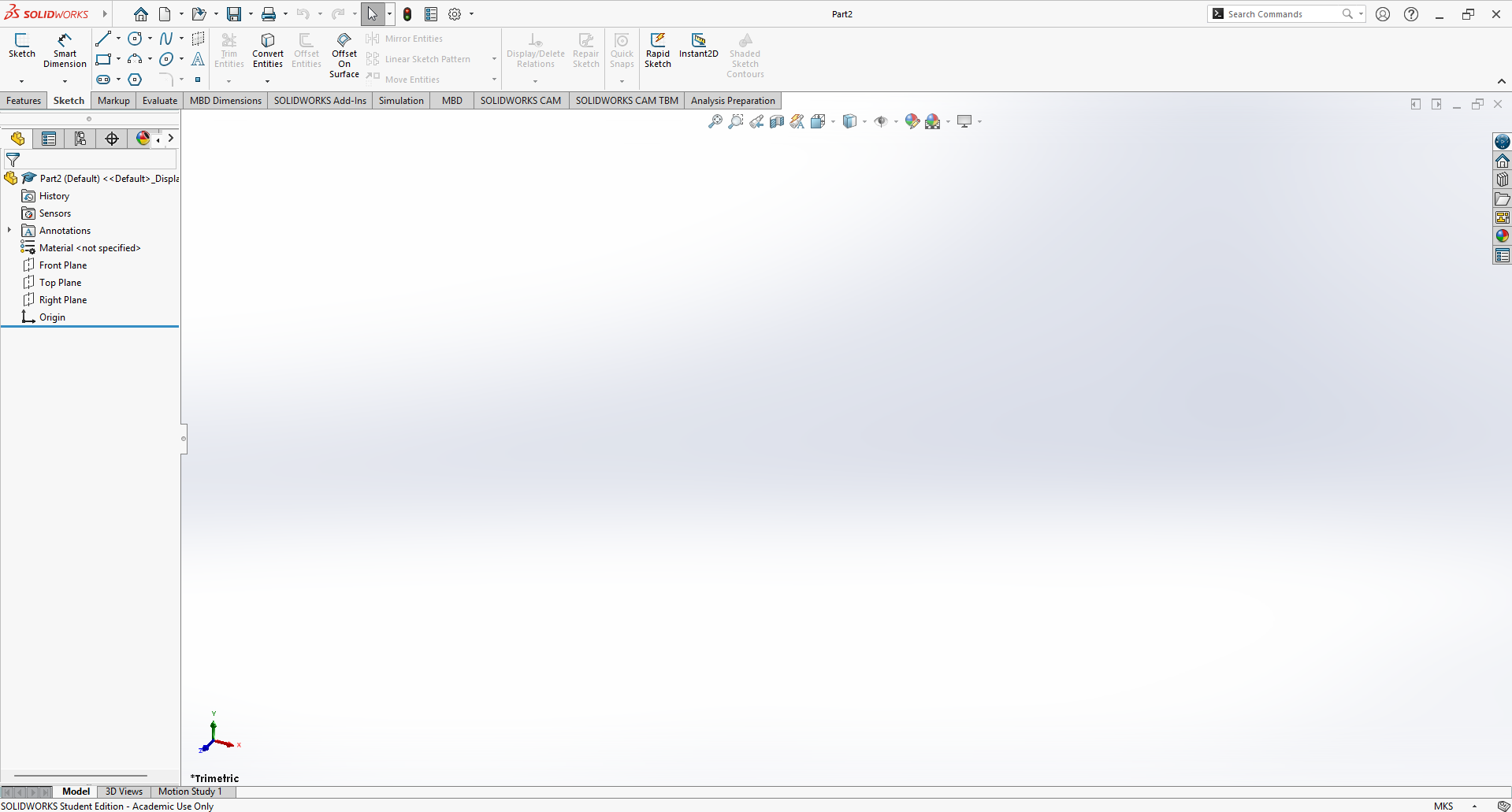
An empty SolidWorks file
So where exactly do we start? There is no better way to learn something on your own than a good teacher on YouTube. Throughout my search, I came across a really good teacher in this really good tutorial.
Now I know what you might be thinking ... "THIS TUTORIAL IS 2 HOURS LONG?"
I will assure you, even if other videos market themselves as "finishing in 20 minutes", they don't go as in depth on explanation and your learning epxerience may leave you more confused afterwards.
I find this video is great as not only does it introduce the tools and features in depth, it also lets you model with the instctor, giving you some practice and reinforcing the learning.
In the end, these 2+ hours are way more worth it. Not to mention, learning isn't about speeding through everything. People take years to learn how to CAD with constantly using it and discovering new things.
Now we are ready to take on the first step of our CAD journey
Throuhgout the video, the instructor will model different household items to show the different tools in SolidWorks and how they are used.
The first part of the video explains how SolidWorks works. It talks about making sketches, different features such as extruding, and other viewing tools. He also goes in depth about different states of the sketch (overdefined, underdefined) and different methods to make sketching easier. The instructor also goes in depth into many concepts that are absolutely vital to know in order to continue with the learning process.
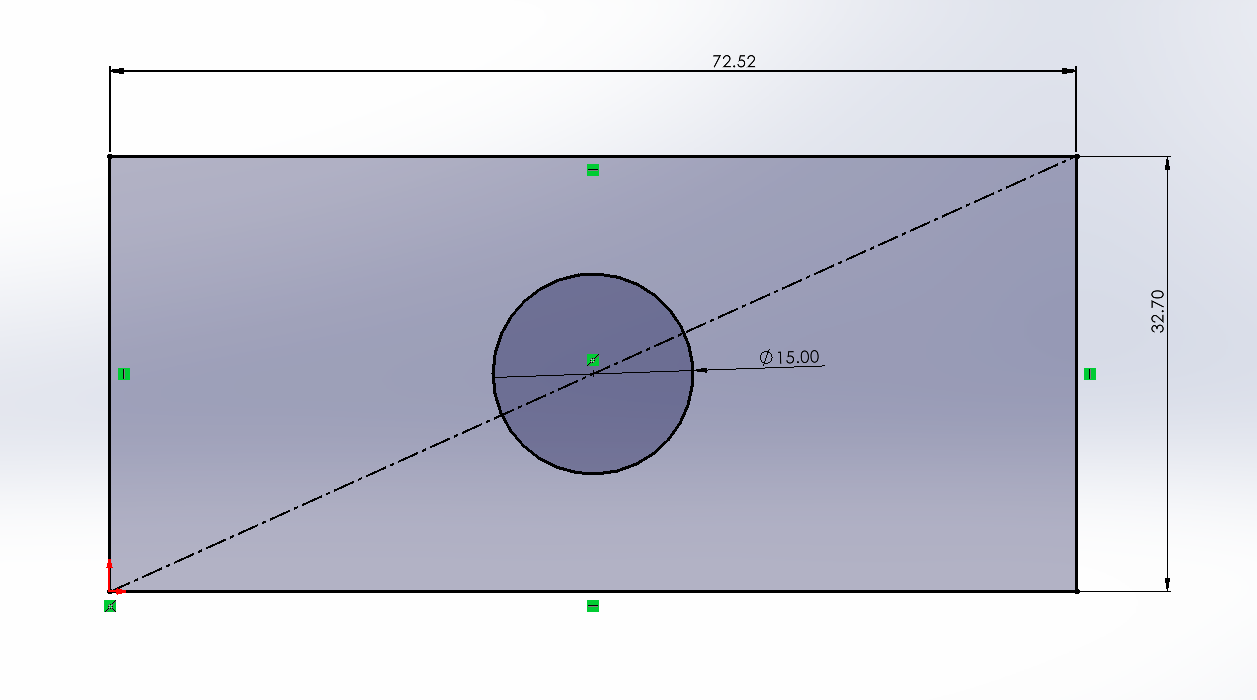
This is an example of the centerline technique taught in the video
After finishing the initial tools introduction, we start our first model: an AirPods case. In fact, a really simplified AirPods case only modelling the exterior shape.
The techniques shown here are how to create a box, as well as the fillet feature. The instructor also goes into great depth on how selecting the right edges to perform the fillet feature on will change the final geometry.
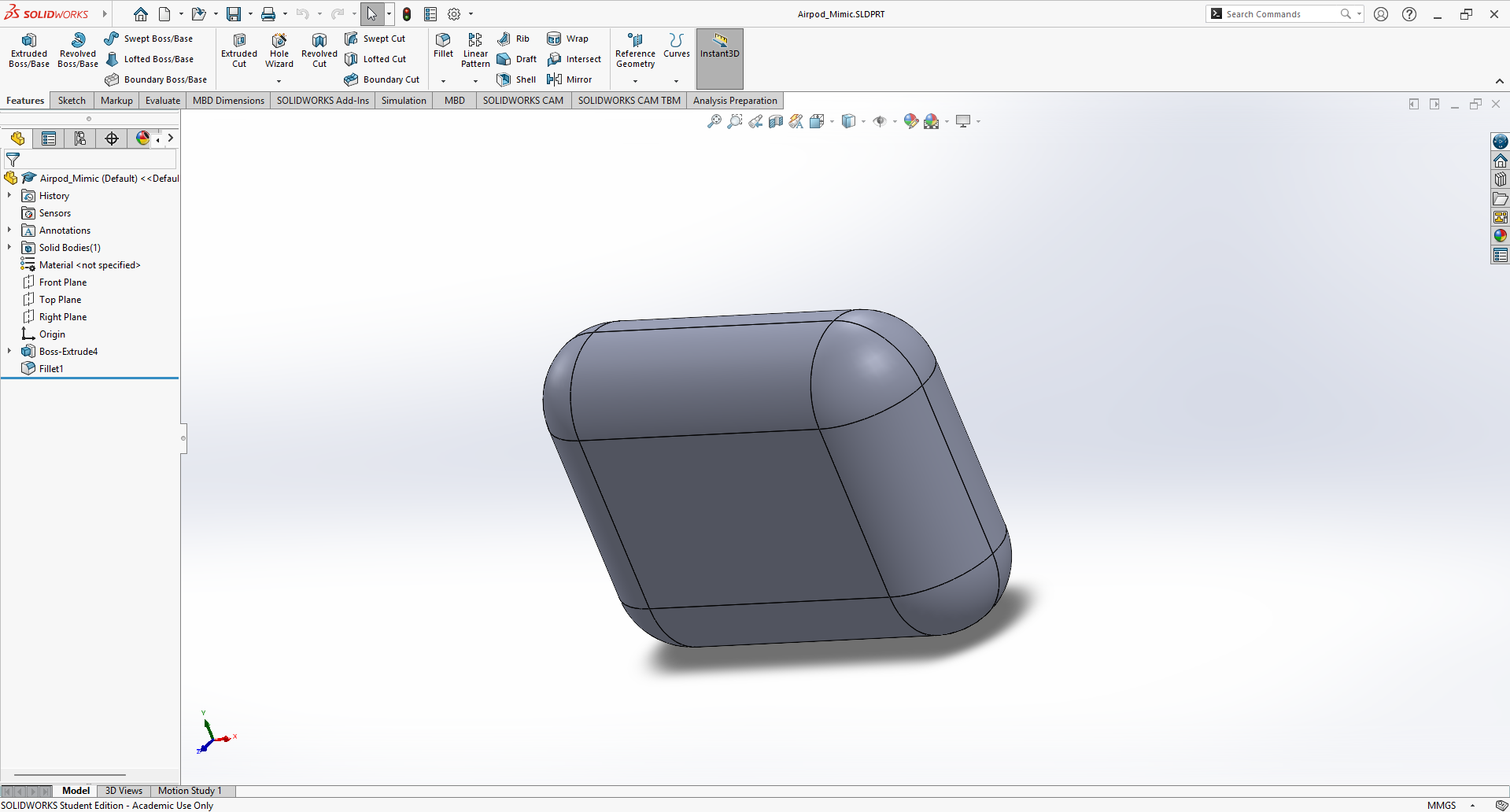
This is the final product produced, when finishing the airpods case portion of the video
The next item we create is a small vase. This object teaches us one way to model hollow objects.
We first learn how to use the revolve feature to create a circular object.
Afterwards, the instructor shows us how to use the 3-point curve to create a small dented design like the original vase.
We are finally left with the finished product.
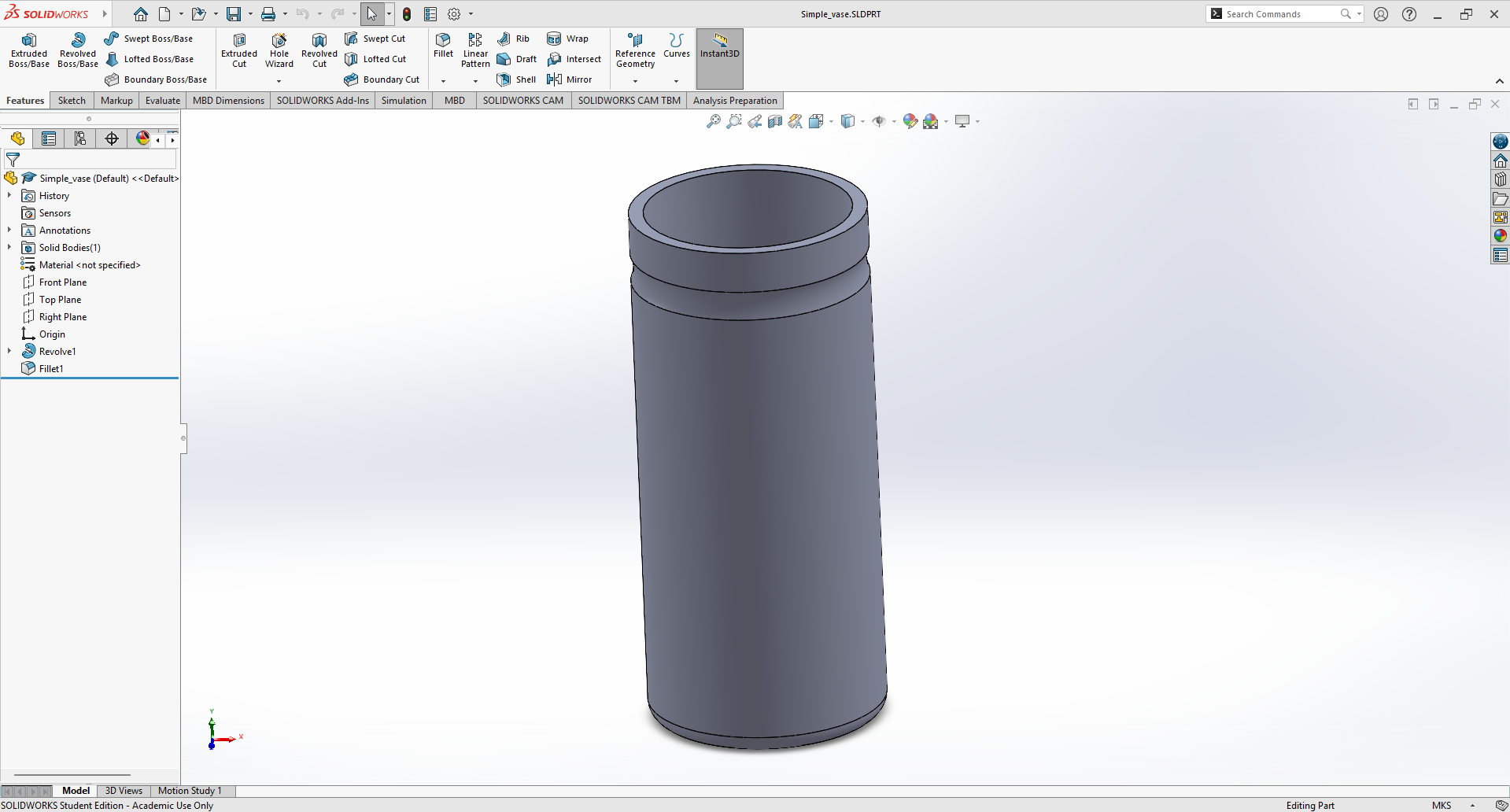
This is the final product produced when finishing the simple vase portion of the video
There is something to note. I forgot to set my units to milimeter-gram-second (MMGS) and isntead kept it as meter-kilogram-second (MKS). This resulted in a 90 meter tall vase. I learned from this to be careful with the measurements in future models.
At this point, I can keep showing the models I created from following the tutorial. But you can just follow the tutorial yourself with the video linked above.
I more or less, just followed the rest of the tutorial all the way through. It isn't that hard. But its the learning experience that matters.
In following this tutorial, I was able to learn some key skills in SolidWorks. It gives the idea on how SolidWorks should be approached, and a basic sense of key concepts such as overdifined and underdefined sketches. Looking back at my previous experiences, I find it much comparable to Blender Guru's Doughnut Tutorial (it is an ever-evolving tutorial with a new one coming out when new versions of Blender comes out). This tutorial, while not teaching EVERY tool in Blender, provides a basic understanding and a really good starting point in which to keep learning in the future.
Given that we finished the parts tutorial, this is a good time to introduce the next stage of learning how to CAD: the assembly.
The Learning Process Part 2: Learning to Make Assemblies
So far, we have only created parts. However, the use of single parts is very much limited. Being an engineering software, SolidWorks needs to be able to design full systems. Enter the assembly. Assemblies allow you to put together multiple parts to create a whole ... well ... ASSEMBLY!
For this portion of the learning process, I resorted to the SOLIDWORKS YouTube channel as the most consise and straight-forward tutorial I could find. They used the example of modelling a pare of pliers.
While this tutorial isn't long and detailed, it shows the general use of the assembly in SolidWorks, giving us a general idea on how it can be used.
Here, I decided to go with a simpler apparatus, as I do not have the exact parts shown in the tutorial. I made the general shape of each blade/handle portion of the tweezers, as well as a simple cylinder for the middle axel portion. After creating both parts, I put the parts together using 1 axel and 2 blade/handle portions. In the end, using the various mate tools learned in the video, I created a a simple scissor/tweezer
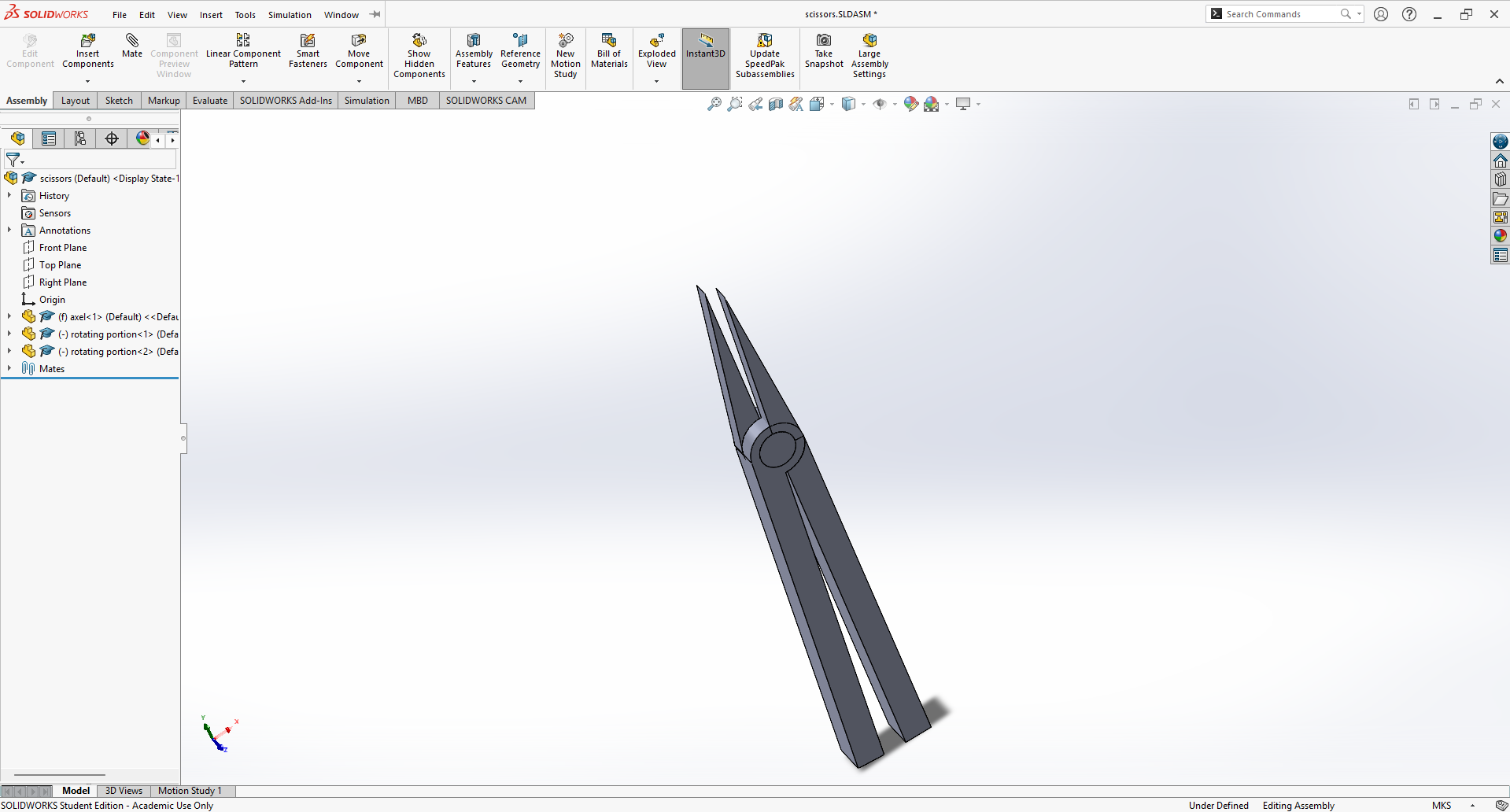
This is my final product produced when creating scissors/tweezers in the assembly portion
While this tutorial does outline some parts of building an assembly, there are many more possiblities that are not covered. It would indeed be a smart thing to find something specific to your need when trying to learn.
The Final Project: A Simple Piston
In order to assess how familiar I am with the various tools in SolidWorks, I decided to build somehting of my own: a simple piston. Various different tools in both the parts and the assembly portion of solidworks will be used.
This small project's only purpose was to assess my understanding of different tools in SolidWorks. It doesn't have any real world applications to it as of now.
Before we create this piston in CAD, we first need to know the parts of a piston. the main parts of the piston (parts that we will model) are the cylinder block, piston, connecting rod, and crankshaft. All these parts are shown in the following picture.
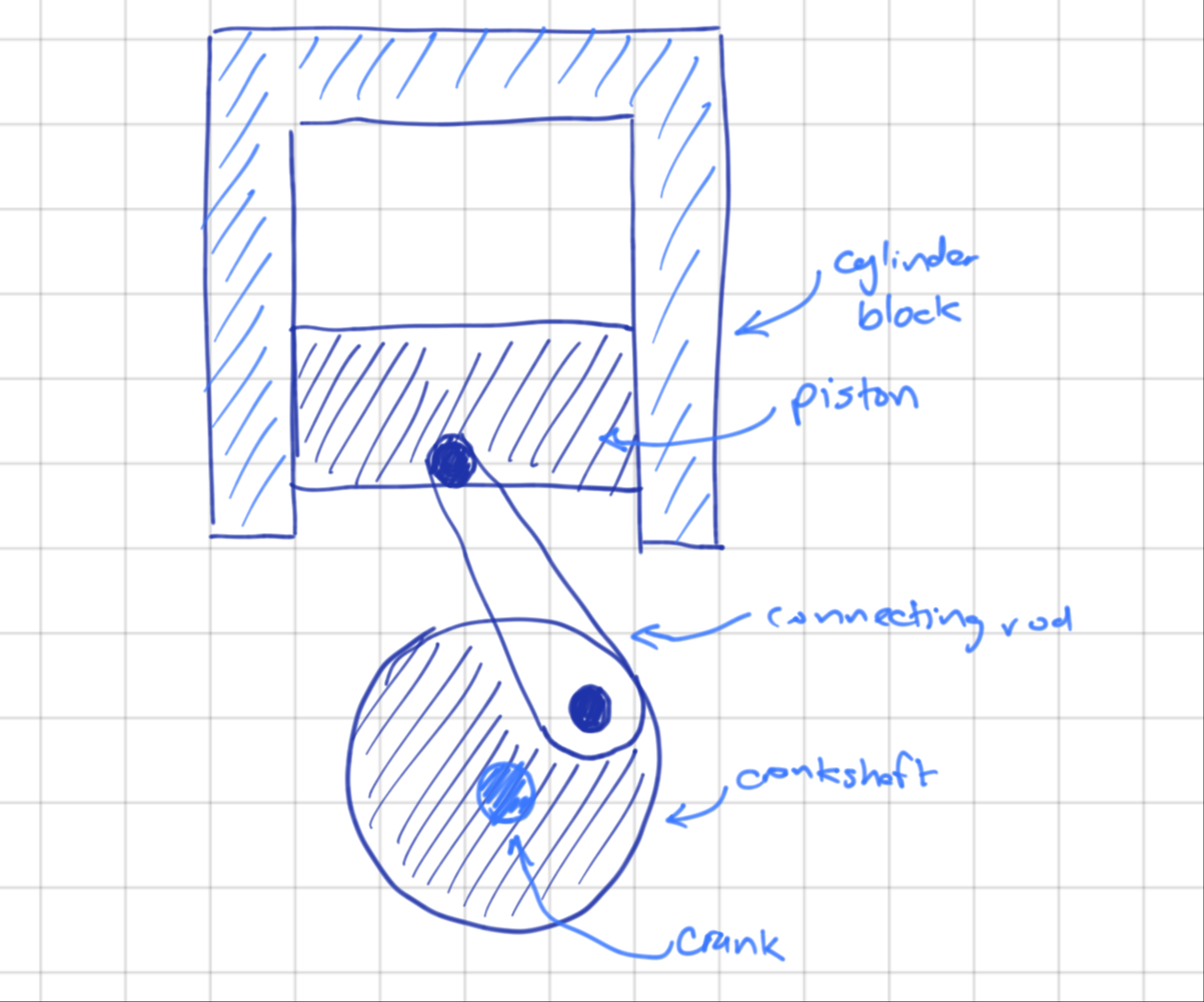
Parts of the piston
The dimentions will be kind of random, but the geometry has to fit. That means the most concerning part is making sure the connecting rod cannot hit the cylidner block.
Firstly, we need to model the crank. All other dimentions will be decided once the crank is modelled. I decided to give the crank a radius of 50mm and let the rest fit in wherever felt right. In the end, I produced the crank, and the dimentions are shown in the following picture.
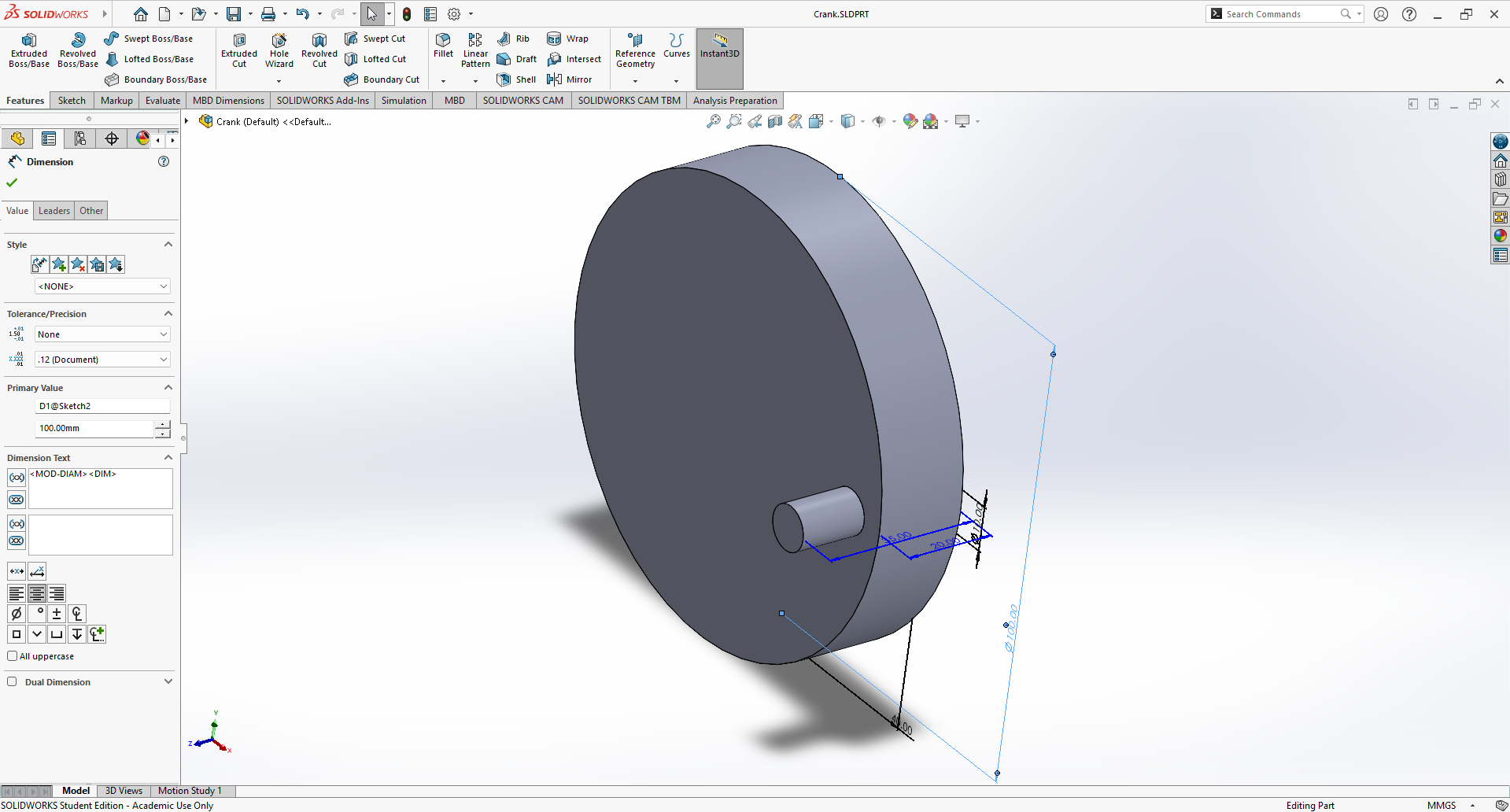
This is the crank created in SolidWorks. Note: dimentions are shown in the picture
Now, I will continue modelling the connecting rod. Since the crank has a diameter of 100 mm and a distance of 80 mm in between the top and bottom rotations of the crankpin, I will give the rod a length of 120 mm. However, with an expected thickness of at least 0.5 cm around the pins for the rod, we will give the thickness 20 mm (as the pin itself is 10 mm in diameter). In the end, I also created the rod, as shown in the following picture.
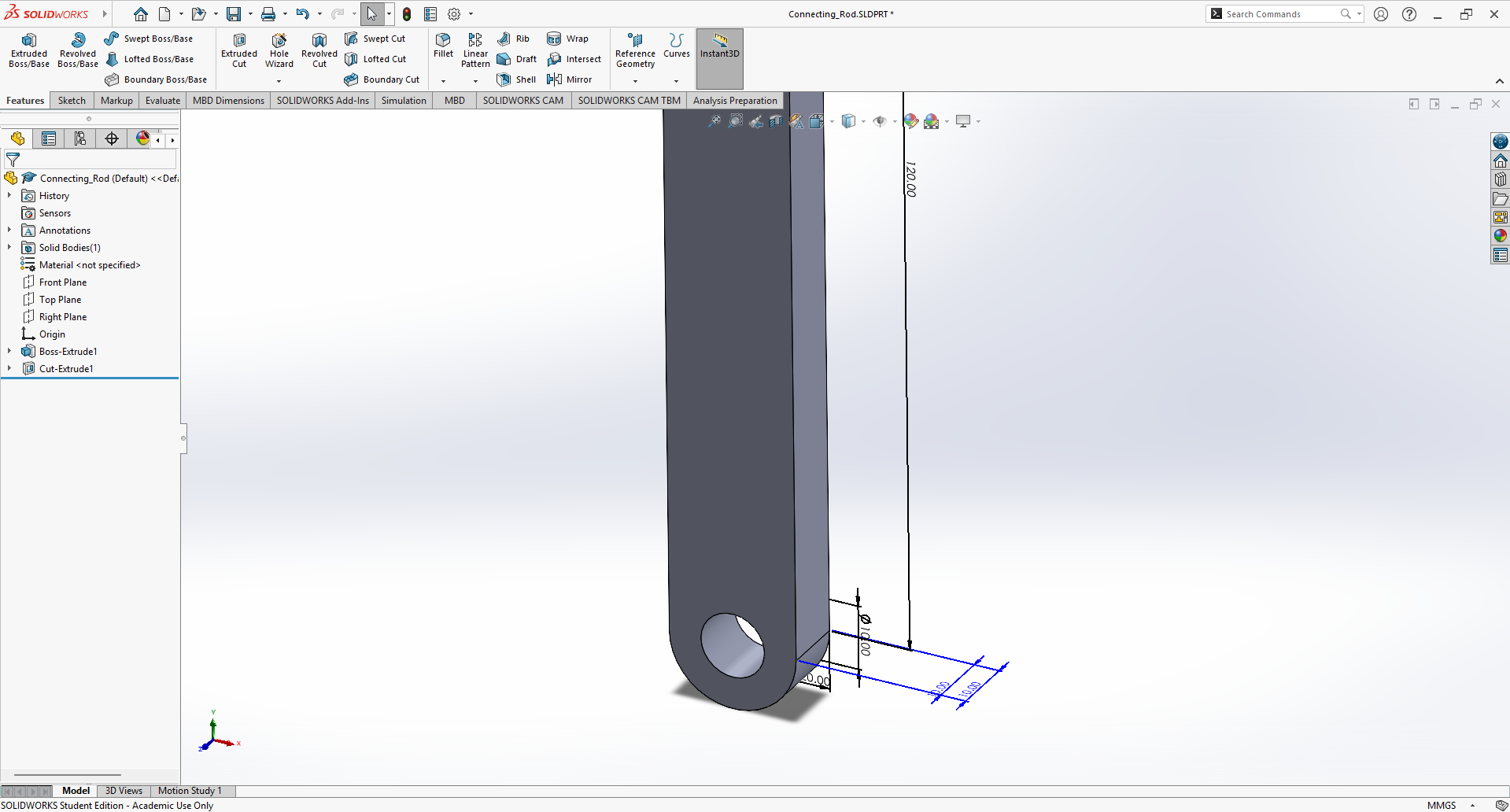
This is the conncting rod created in SolidWorks. It is zoomed in to show specific dimentions
Now, it is time to create the piston. In order to make sure the rod will not strike the cylinder block, I decided to go with a ring the same diameter as the crank. For the thickness of the piston, I decided to make it 50 cm thick. All that's left to do is to create a gemoetry that will mount hte piston and the rod together. I opted for a rather ugly design using simple triangles. After some very questionable geometry choices, I created the piston shown below.
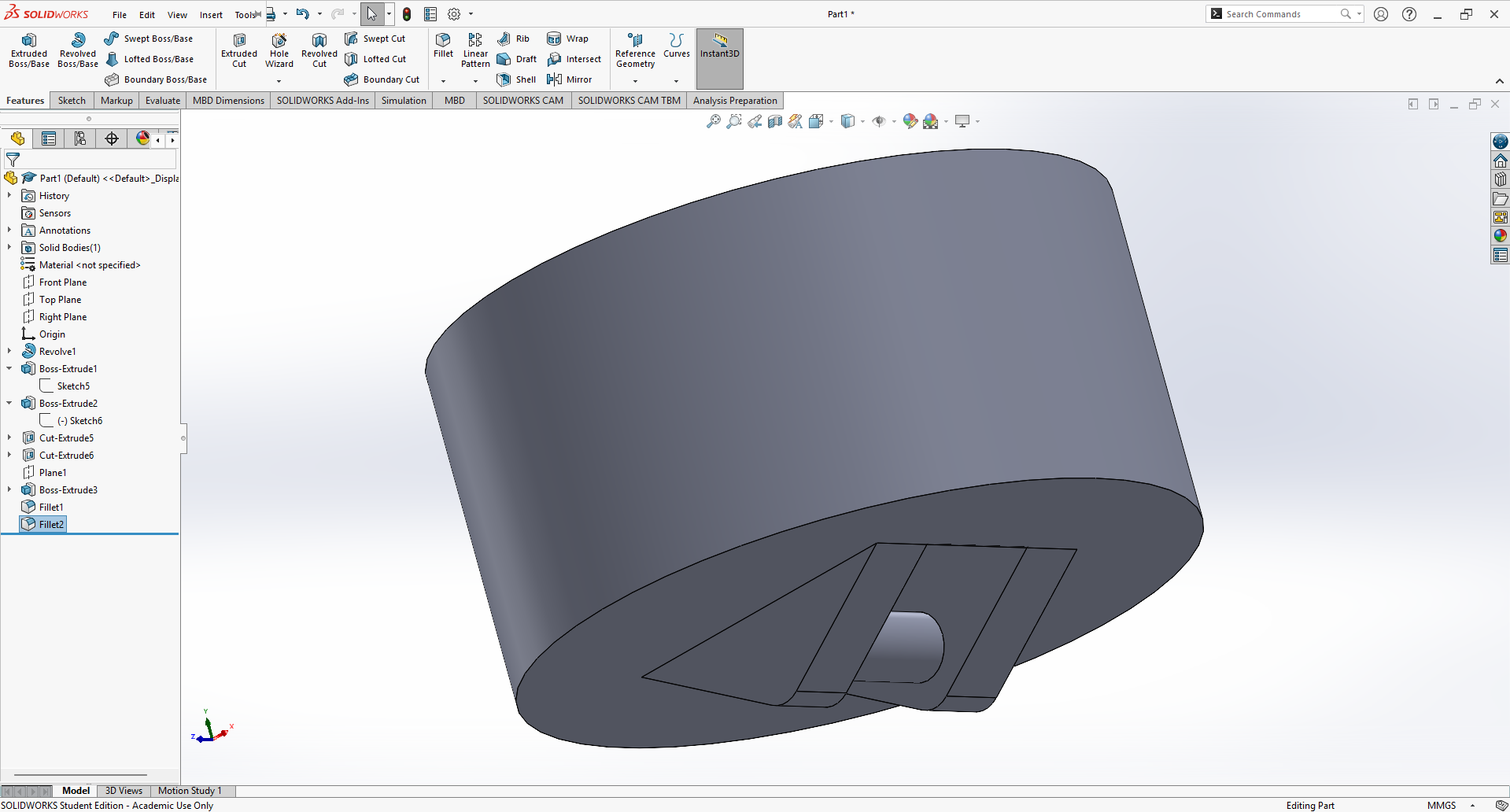
This is the piston portion.
Finally, it is time to create the cylinder block. I wanted th join the cylinder block with another part to hold the crankshaft in place. Firstly, we needed to match the block with the piston. We first give it an internal radius of 50 mm and an external radius of 60 mm (the walls are 1 cm thick). Next, we decide the height of the piston. Since the difference between top and bottom rotations of the piston is 80 mm, I decided to make the block have a cavity 150 mm tall (to accomodate for the piston's height, the range of motion, and 20 cm of space afterwards) and externally make it 160 mm tall. Finally, we join it with part holding the cranskaft to get the creation shown below.
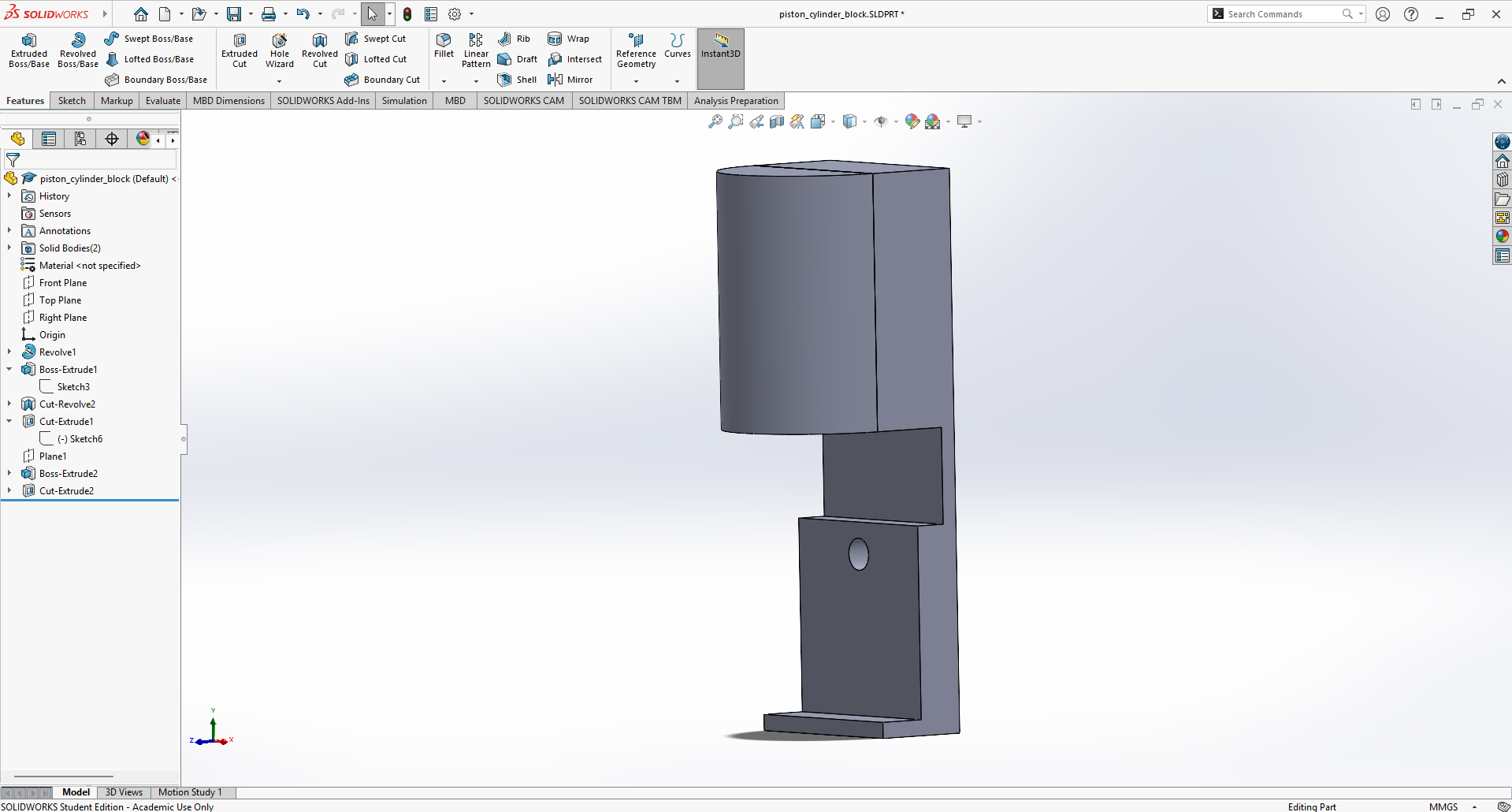
This is the cylinder block combined with a part to hold the crank together.
Finally, we put everything together to create the piston.
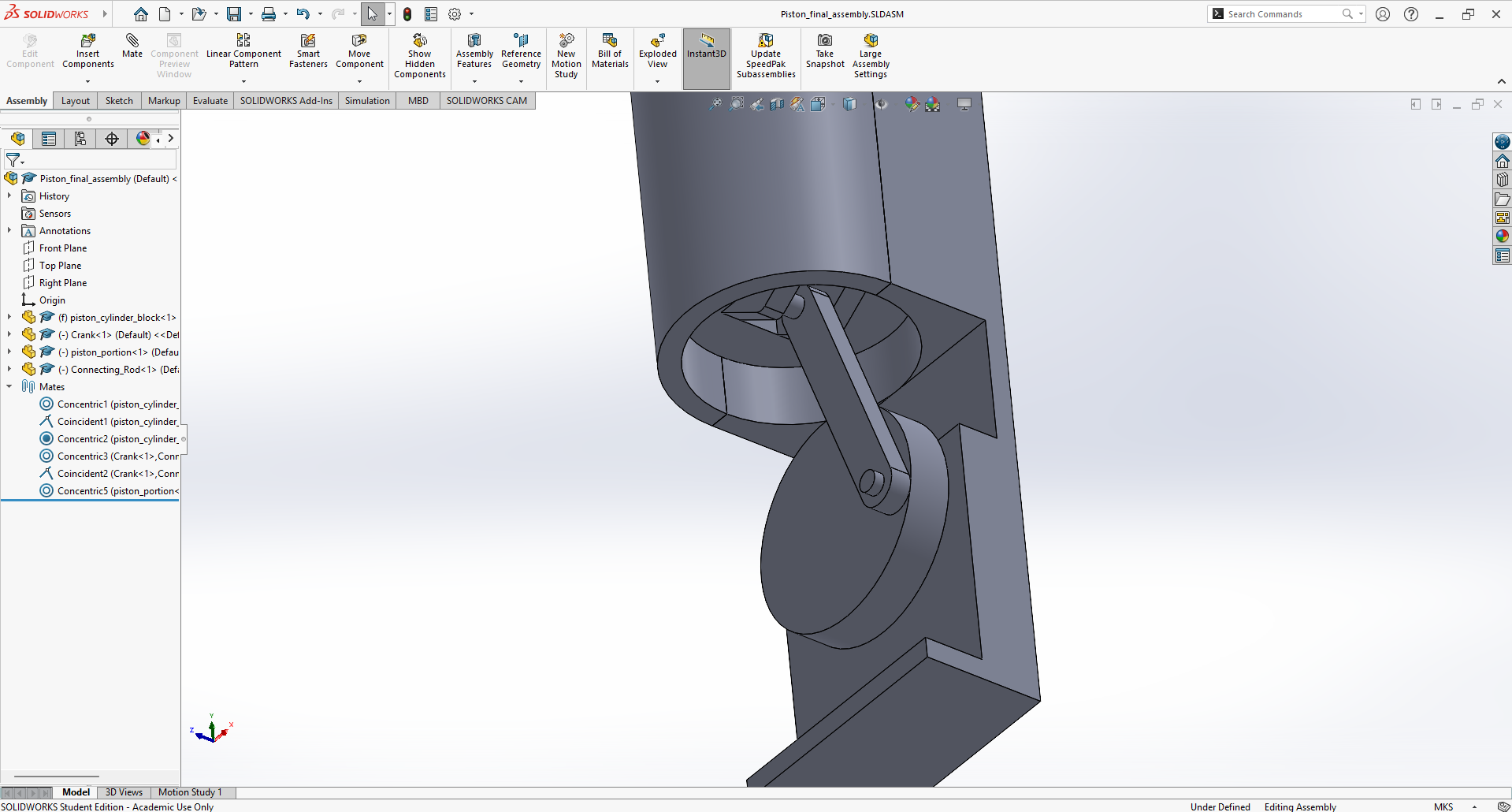
This is the final assembly of the piston.
With our piston assembled, our project is conlcuded! I have successfully finished the start to my journey on SolidWorks.
Final Thoughts
It was a quite process learning how to model in SolidWorks. Throuhgout the way, I encountered many difficulties that I solved on my own. There is, however, one rule of thumb: The internet is your friend. While the tutorials I linked in this article are very helpful, they do not provide the full scope of what you can do with SolidWorks. Whenever you come accross difficulties, try to find articles and videos that suite your specific need.
Even though I have successfully created the final project on my own and completed my goals, this is only the start to my journey in CAD. There is much more to learn and even more to do in the world of CAD. While I believe I will mainly use SolidWorks, I also aim to familizrize myself iwth other solftware such as Fusion and Onshape (although I bleieve they should be mostly similar)
Downloads:
Here, you can download the piston I created as the final project.
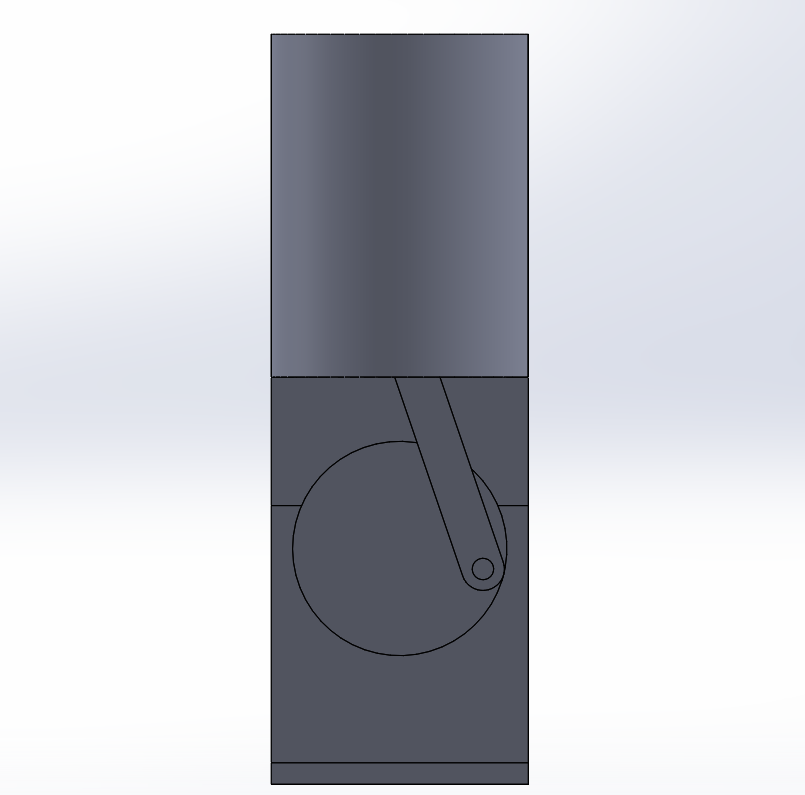
Final Piston Project
This is the piston project done in the end. The .zip file inlcudes the .SLDASM assembly file as well as .SLDPRT part files.
Download .zip File